





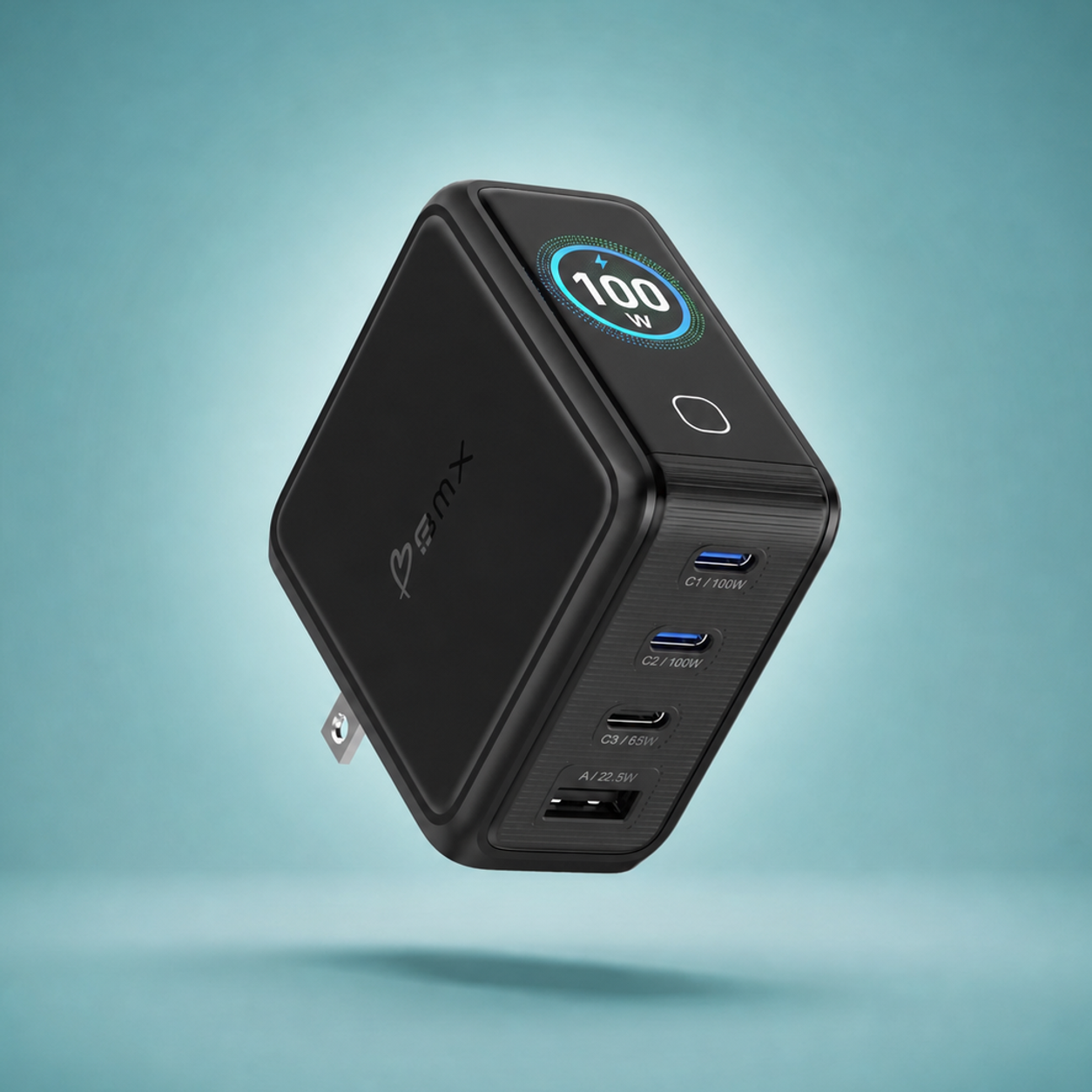
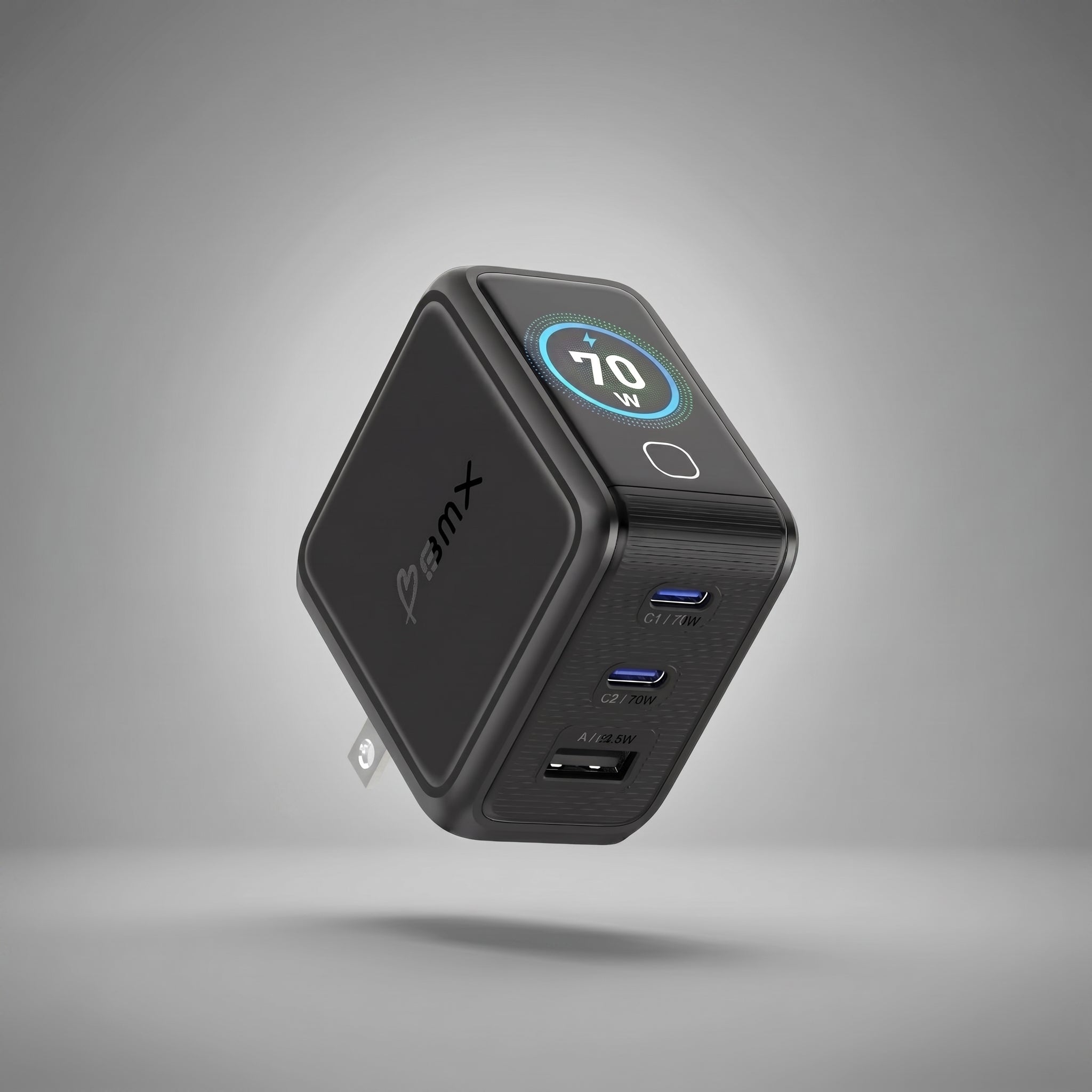



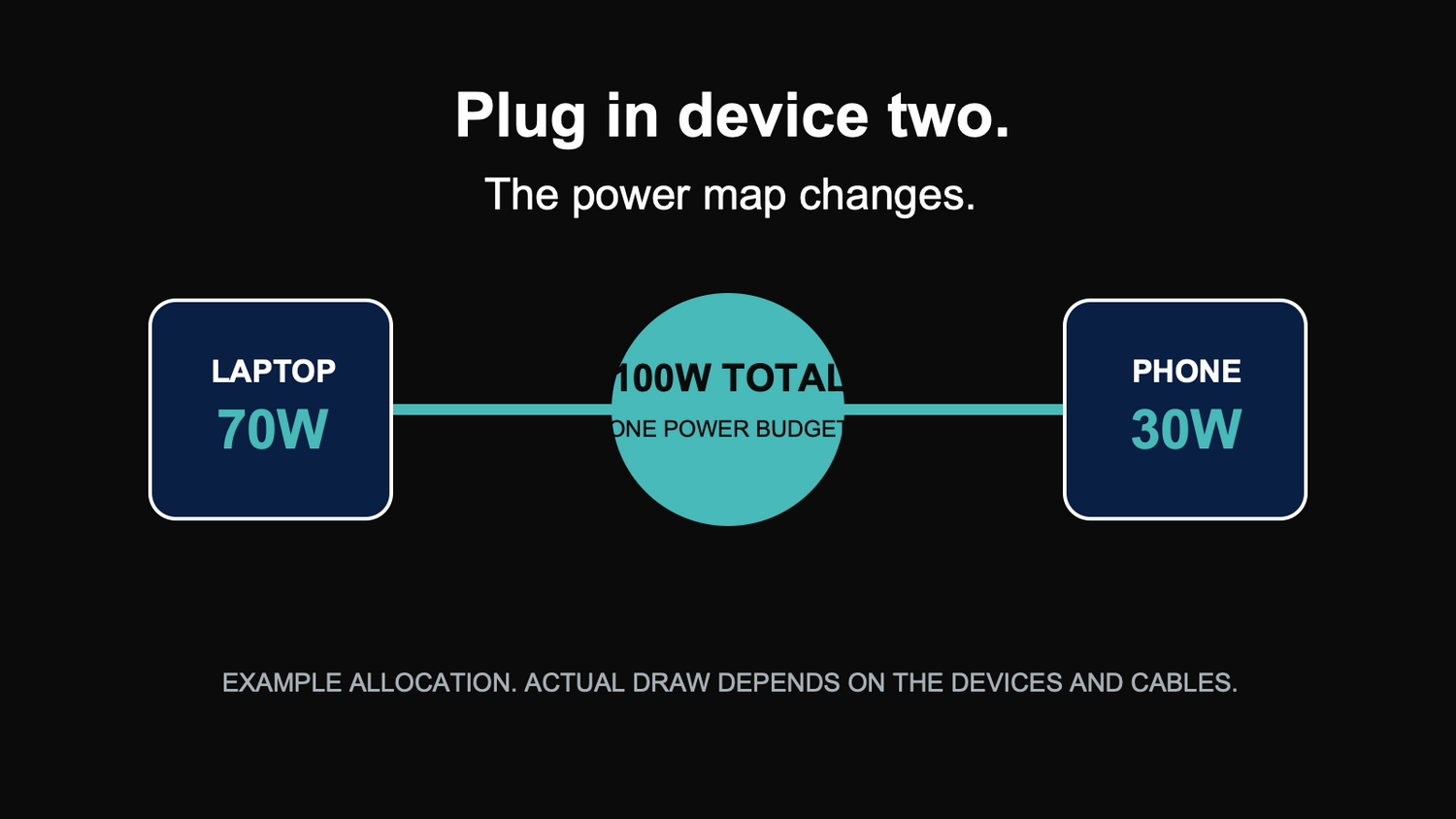
Your laptop is plugged into a 100W charger. Then your phone hits 12%, so you connect it to the second port.
Your laptop is no longer getting the charger by itself. The same 100W budget now has to cover both devices.
What just happened?
The number printed on a charger is one shared power budget. Plug in a second device and the charger divides that budget between them. It does not have 100W hiding behind every port.
Your charger is making a new seating chart
With one device connected, that device can have the whole table. Add another and the charger has to find seats for both.
First it notices the new device. Then it switches to the power split assigned to those two ports. Finally, the laptop and phone each take what they can use within their new limit.
The charger is not adding another 100W. It is making a new seating chart for the power it already has.
The big number is not the whole story
A 100W charger can give one laptop up to 100W. That does not mean it can give a laptop 100W and a phone another 100W at the same time.
The useful number is the two-port split:
| Charger | One device on C1 or C2 | Two devices on C1 + C2 | What changed |
|---|---|---|---|
| GaNSta Pixel 100W | Up to 100W | Up to 70W + 30W | Enough ceiling for a laptop plus a phone or tablet. |
| GaNSta Pixel 140W | Up to 140W | Up to 65W + 45W | The two-port mode favors two substantial loads. |
These are maximums, not promises. A nearly full phone may sip only a few watts. A laptop doing heavy work may ask for more. A weak cable can slow the whole thing down.
The table tells you how much room each device gets. The devices decide how much of that room they use.
Do you even need the full 100W?
Usually, no.
A 100W laptop does not pull 100W every minute it is plugged in. Think of 100W as the fastest lane available, not the speed the laptop uses all day.
If you are answering email, working in a document, or browsing the web, a lower share may still run the laptop and charge the battery. The battery may simply fill more slowly.
The full amount matters more in two situations:
- You need a fast refill. A low battery can recover faster when the laptop, charger, and cable all support the higher rate.
- The laptop is working hard. Gaming, rendering video, or another demanding job can use much of the incoming power before anything is left for the battery.
That gives you three possible outcomes with a lower-wattage share:
| What the laptop is doing | What you may see |
|---|---|
| Light work | It runs normally and the battery keeps charging, just more slowly. |
| Power use is close to the charger input | The laptop runs, but the battery percentage barely moves. |
| Heavy work uses more than the charger is supplying | The laptop stays plugged in but slowly uses some battery too. |
Apple says a USB-C Mac can charge from a USB-C Power Delivery adapter with higher or lower wattage than the adapter recommended for that Mac. The recommended wattage gives the best charging experience. Lower power does not automatically mean no charging; it means less headroom.
So if a 100W charger changes to 70W + 30W when your phone joins, the laptop has not suddenly become unusable. For a lot of ordinary work, you may not notice any difference beyond a slower battery refill.
The ports are not equal siblings
They may look identical. They are not.
On the GaNSta Pixel 140W, C1 + C2 can split up to 65W + 45W. Use C1 + C3 instead and the split can become 100W + 30W.
Same charger. Same devices. Same cables. One cable moved an inch.
This is why the strongest USB-C port should go to the greediest device, usually the laptop.
Find the bottleneck in two minutes
- Unplug every device.
- Connect the highest-draw device to C1 with a cable rated for the power you expect.
- Confirm its charging behavior by itself.
- Add device two to the recommended secondary port.
- Compare the result with the charger's exact two-port allocation table.
If the laptop slows the moment the phone connects, look at the port split first. If both devices are still far below the listed numbers, swap the cables next.
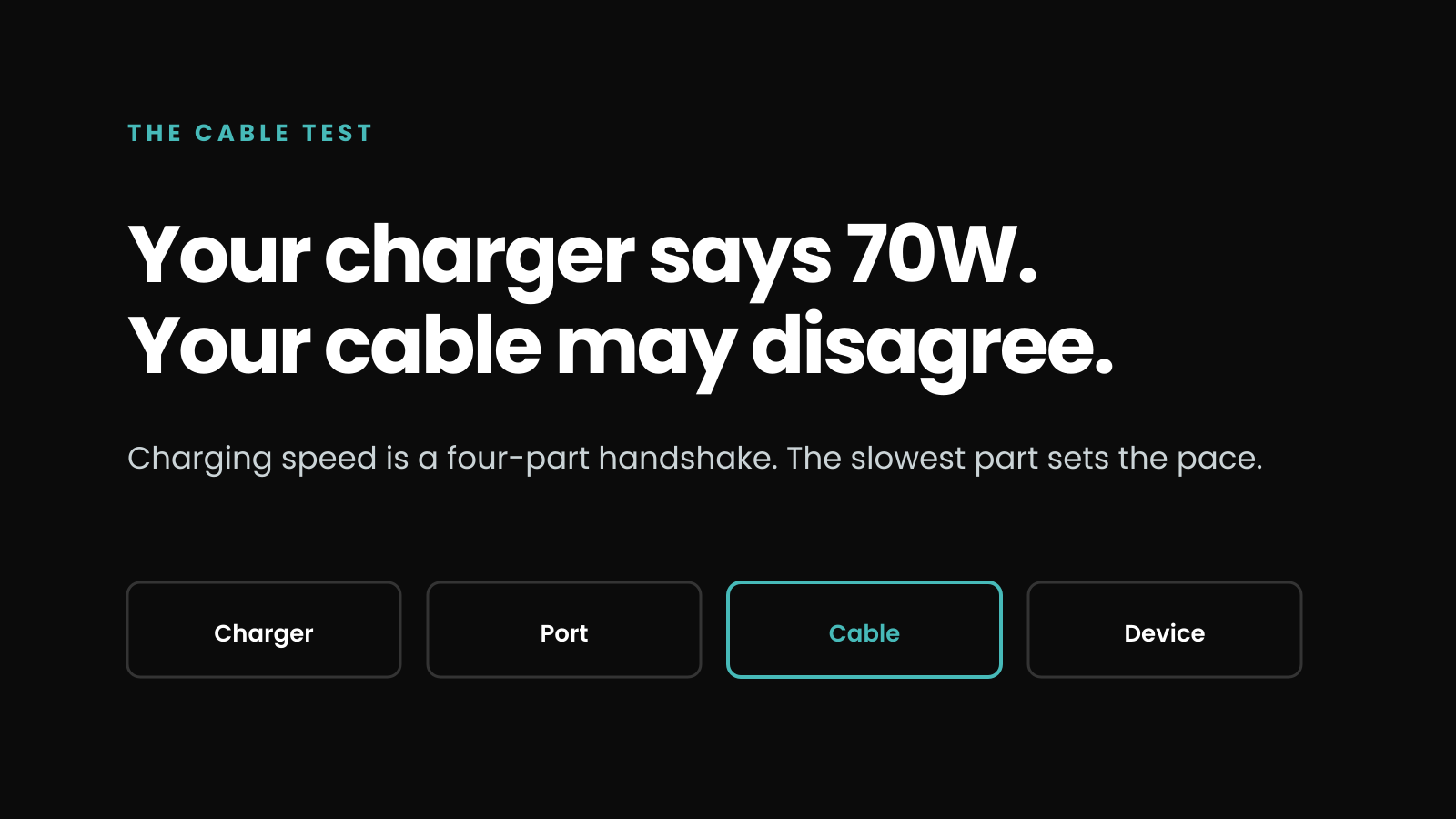
Do not forget the boring possibilities. A nearly full battery slows down. A warm device may slow down. A cable can quietly become the weakest link.
This is where a screen stops feeling silly
A screen on a charger sounds unnecessary until your laptop slows down and you want to know why.
GaNSta Pixel shows charging speed by port and total output. Plug in the phone and you can watch the numbers change. Move the laptop to another port and watch them change again.
The screen does not fix anything by itself. It replaces guessing with evidence.
Which Pixel fits this job?
Keep the choice simple. Pick the wattage your laptop needs when it is working hard.

PIXEL DISPLAY
GaNSta Pixel 100W
For laptops that charge at up to 100W. Laptop plus phone can split up to 70W + 30W.
$79.99
See Pixel 100W
PIXEL DISPLAY
GaNSta Pixel 140W
For higher-power laptops or more headroom. The port pair you choose can give the laptop up to 65W or 100W when a second device joins.
$89.99
See Pixel 140WThe short version
Plugging in a second device does not create more power. It changes who gets what.
Give the laptop the strongest port. Check the two-device split. If the numbers still look wrong, swap the cable.
Adding a second device changes the split. That is the whole trick.
Sources: USB Implementers Forum guidance on USB Power Delivery negotiation; Apple guidance on using higher- or lower-wattage USB-C power adapters with Mac laptops; current GaNSta Pixel 100W and 140W product authorities and verified power-allocation tables, checked August 3, 2026.
Related reading: Is your USB-C cable slowing down charging? and Can one charger replace everything in your travel bag?

Leave a comment
This site is protected by hCaptcha and the hCaptcha Privacy Policy and Terms of Service apply.